AI-formatting lessons AcademyOcean
Even informative educational material can be difficult to take in if it looks like a solid block of text. To make a lesson easier to understand, the author has to manually organize headings, format lists, highlight important sections, and maintain a consistent style.
When it comes to a single lesson, this may seem like a minor task. But for teams that regularly create courses or maintain a large library of learning materials, manual formatting becomes an ongoing operational process.
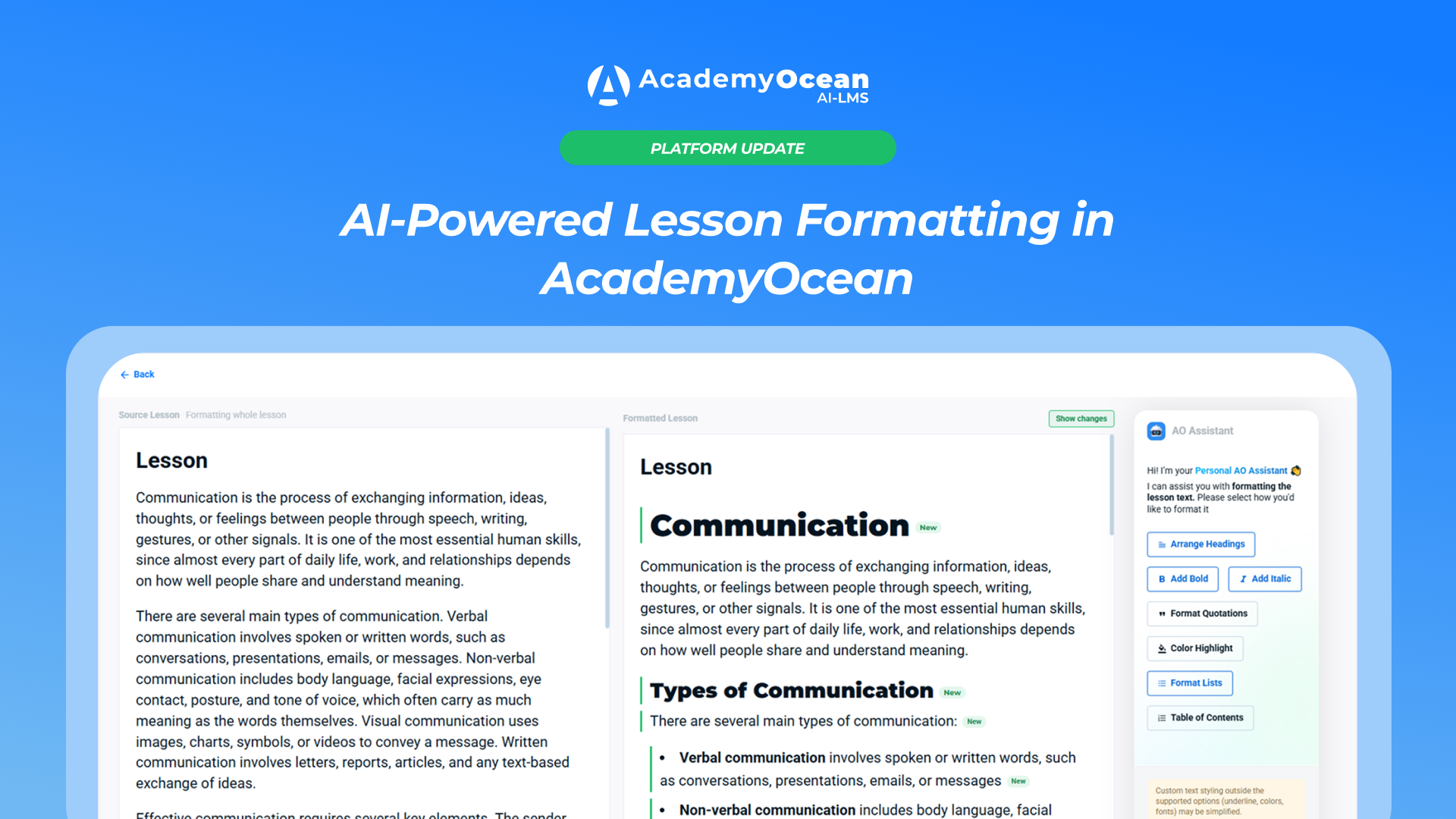
Now, part of this work can be delegated to AI directly within the AcademyOcean lesson editor. The new feature helps organize content formatting, shows a preview of the result before applying it, and leaves the final decision up to the author.
What’s New in the Lesson Editor
A “Formatting with AO Assistant” button has been added to the AcademyOcean text editor. It triggers AI formatting for the entire lesson or a pre-selected section.

Before running the feature, the user selects which changes to apply. For example, you can ask the AI to simply organize headings and lists, or to additionally format quotes, highlights, and the automatic table of contents.
After processing, AcademyOcean displays the current and formatted versions of the lesson for comparison. The result is not applied automatically: you can review it, accept it, or reject it.
What Elements Can Be Formatted
There are seven options available in the settings. You can combine them depending on the structure of a specific lesson.
- Arrange Headings — helps organize headings and make the structure of the material more visible.
- Add Bold — adds bold formatting to key ideas and concepts.
- Add Italic — creates additional semantic emphasis without overloading the page.
- Format Quotations — formats quotations as separate content blocks.
- Color Highlight — highlights important sections with a colored background.
- Format Lists — converts sequences and lists into structured lists.
- Table of Contents — generates a table of contents based on the lesson headings.
You don’t have to use all the options at once. Authors can choose only the settings that best suit the specific content and style of the course.

How AI Formatting Works
The process consists of a few simple steps:
- Open the desired lesson in the AcademyOcean editor
- Run " Formatting with AO Assistant " for the entire lesson or select a specific section first.
- Select the desired formatting options.
- Click " I want AI magic " and wait for the processing to complete.
- Compare the original material with the suggested result.
- If you like the new formatting, click “Use in Lesson.” If not, go back without changing the lesson.

This process allows you to use AI as an assistant, rather than as a system that makes decisions on its own instead of the author.
Format the entire lesson or a specific section
Not all material needs to be completely reworked. Sometimes it’s enough to reorganize a single long paragraph, format a list, or add emphasis to a specific part of the lesson.
If you select text in the editor before running the feature, the AI will work specifically with that section. If you don’t select anything, the formatting will be applied to the entire lesson.
This is convenient for making targeted updates to existing materials. The author doesn’t need to reprocess the entire lesson if changes are needed in only one section.
Compare the result before applying
Once processing is complete, the original content and its formatted version are displayed on a single screen. The author can see how headings, lists, highlights, and other elements will look even before saving.

If needed, you can click “Show changes.” AcademyOcean will highlight new headings, lists, quotes, and highlighted text to make them easier to find during review.

This is especially important for corporate training, where materials may contain internal policies, instructions, and other information that requires careful review.
AI improves formatting, not rewrites the lesson
This feature is designed to work with content formatting. Its purpose is to structure the material, add visual highlights, and make the text easier to read.
AI formatting is not intended to automatically correct facts, change phrasing, or rewrite the lesson’s content. The author retains control over both the material itself and how it is presented.
At the same time, keep in mind that non-standard formatting outside the supported options—such as underlining, custom colors, or fonts—may be simplified after processing. That’s why AcademyOcean shows a preview of the result before applying it.
If the suggested version works for you, click “Use in Lesson.” If not, you can return to the settings by clicking “Clear all” or close the window by clicking “Back,” leaving the original lesson unchanged.

Who Will Benefit from This New Feature
AI formatting will be useful for teams that:
- regularly create or update learning materials;
- work with a large number of lessons and courses;
- want to maintain a consistent design style;
- aim to improve the readability of their content without time-consuming manual work;
- involve multiple authors in course creation;
- Import materials from documents or other systems into AcademyOcean.
For example, an L&D team can prepare a new course for launch more quickly. An HR department can standardize onboarding materials to a consistent style. And an academy administrator can organize lessons created by different experts.
How to Try AI Formatting
This feature is now available to all AcademyOcean customers on all pricing plans.
Open the lesson editor, select all the material or the desired section, configure the formatting options, and preview the result before applying it.