Automation Rules in AcademyOcean: Automatically Assign Learners to Teams
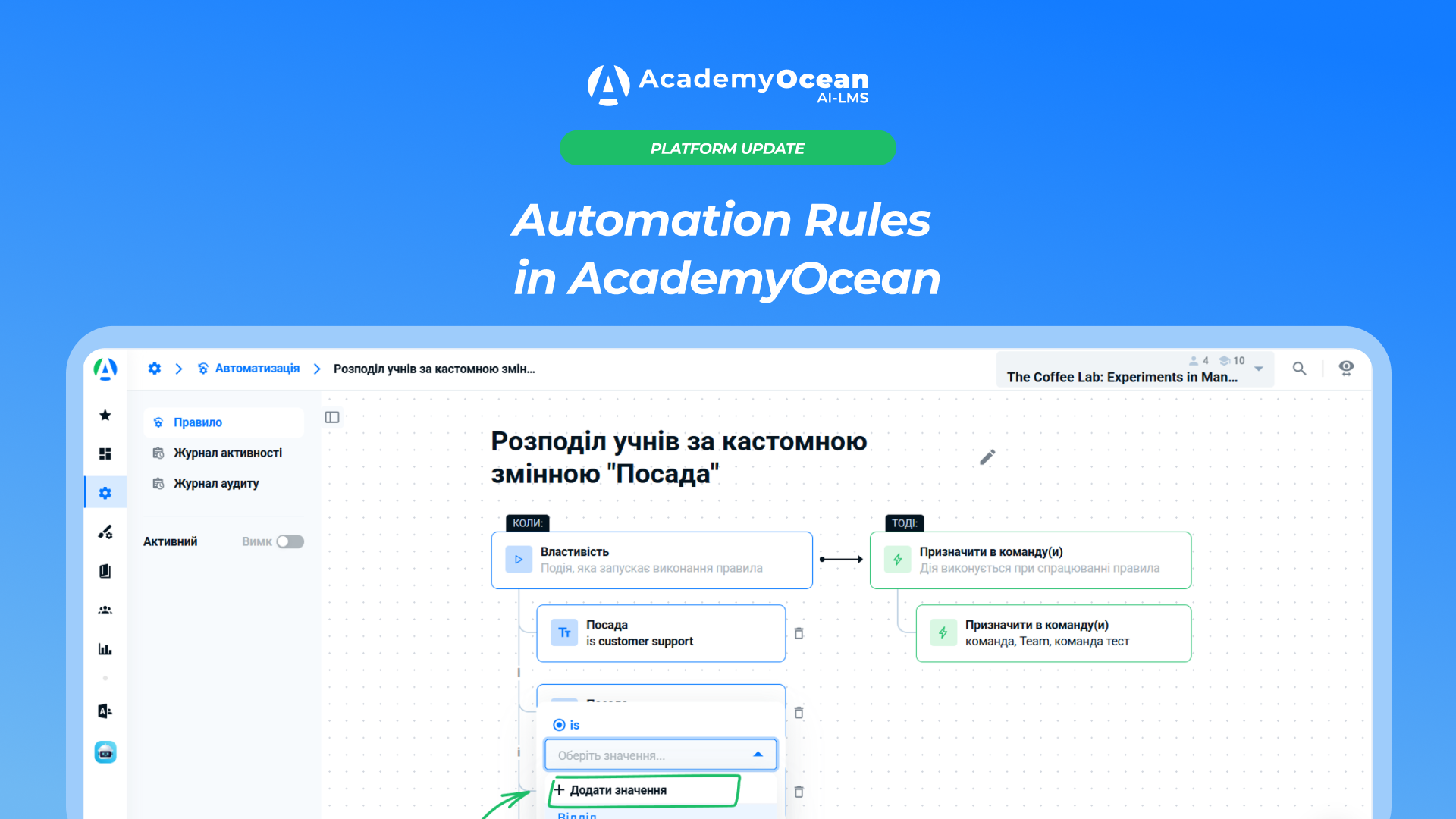
Automation Rules in AcademyOcean: Automatically Assign Learners to Teams
When new employees are registered in the academy, their positions, departments, and cities are already listed in their profiles, but the administrator still has to manually add each one to the appropriate team. As the learner base grows, the administrator has to repeat the same task more and more often: check profile details, find the correct team, and update its roster.
Automation Rules automate this repetitive process.. The administrator sets conditions based on the learner’s properties, specifies the teams to assign them to, checks the expected result in the preview, and activates the automation. After that, the rule’s execution can be tracked in the activity log, and changes to its settings can be tracked in a separate audit log.
Here’s how Automation Rules work and how they help HR and L&D teams eliminate manual learner sorting.
How Automation Rules Change an Administrator’s Work
Instead of reviewing profiles and manually keeping team membership up to date, the administrator defines the assignment logic once. For example, support staff from Kyiv need to be added to the team with the relevant onboarding program. If the role and city are already saved in the profile properties, they can serve as conditions for the rule.
The new Automation section is located in Academy Settings. Its main page displays all created rules, a search field, and the All, Active, and Inactive tabs. In the table, the administrator can see the conditions, the action, the number of learners processed, and the date the rule was last triggered. This makes it easier to understand not only which rules have been configured but also whether they are actually being used.
How the “When → Then” Rule Works
Each rule consists of a trigger and an action. In the “When” section, the administrator selects a learner property, an operator, and the desired value. In the “Then” section, they specify one or more teams to which the learner should be assigned. A rule can only be saved if it contains at least one condition and one action.
Let’s consider a scenario: you need to automatically group support staff from Kyiv into a separate onboarding team. The rule checks whether the “Position” field has the value “Customer Support” and whether the “City” field has the value “Kyiv.” If both conditions are met, the “Assign to team(s) ” action assigns the learner to the selected team.

An important detail: multiple conditions within a single rule operate under “AND” logic. This means that the learner must meet all specified criteria simultaneously.
The more conditions an administrator adds, the narrower the resulting group typically becomes. In the initial version, up to 50 conditions can be added to a single rule, but there is currently only one action—assignment to a team or multiple teams.
Learner properties become automation conditions
Automation Rules use system and custom profile properties. These can be existing data points that the company uses to segment people: job title, department, location, or other variables created to fit the company’s specific structure.
To compare properties, the operators `is`, `is not `, and `is unknown` are available. The first finds learners with a specific value, the second finds profiles where the value differs, and the third finds profiles where the parameter is not filled in. For example, `is unknown ` helps you identify people to whom a team cannot be correctly assigned until the required department or city is specified in their profile.

This does not mean that the system determines the reason for missing data or corrects it automatically. The rule only works with the information stored in the profiles.
Therefore, it’s important to check the names and values of properties before running the rule, especially if they’re filled in by different administrators or transferred via integration.
Pre-launch check: who will be affected by the rule
Automation shouldn’t be a “black box.” Next to the Save button, you’ll see the number of learners who meet the configured conditions, and the Preview button opens a table with specific profiles. There, you can check the name, email address, city, country, registration date, and other available data.
The preview is read-only: it shows the expected result but does not modify the profiles. If the wrong people were selected, the administrator can return to the editor, refine the conditions, and check the result again. This is especially useful for rules with multiple parameters, where a single overly broad value might include more learners than expected.

After saving, a rule can remain “Inactive” or be set to “Active.” This approach allows you to prepare the logic in advance and enable it when the team is ready for automatic assignment.
When an active rule is triggered
An active rule is executed not only during the initial setup. In the current version, there are five trigger points:
- when a new rule is saved with the “Active” status;
- when an existing rule is switched from Inactive to Active;
- every 30 minutes for active rules;
- after a learner completes the Welcome Pop-up;
- when a new learner registers.
After editing an active rule and saving the changes, the system also rechecks whether learner meet the conditions and updates their assignments to teams. However, this should not be interpreted as an immediate response to any profile change: the confirmed regular verification cycle is 30 minutes, except for the events listed above.
The rule assigns eligible learners to selected teams. The initial version does not support the automatic removal of people from teams, so such scenarios require separate administrator oversight.
Two logs for different purposes
After launch, it’s important to understand both what the automation has done and who has changed its settings. Two separate logs are available for this purpose.
Activity Log: Who Was Affected by the Rule
The Activity Log shows the learner for whom the rule was executed, the conditions applied, the action taken, and the time of the last execution. If the automation processes the same learner multiple times, each execution is displayed as a separate entry. New events appear at the top, and pagination is available for long logs.
This log answers the administrator’s practical question: “To whom and when was the rule applied?” If the team composition does not match expectations, the entries help verify that the rule was executed, but they do not explain the reason for the discrepancy in the profile data.

Audit Log: Who Changed the Settings
The Audit Log records administrative changes to the rule and allows you to view the technical data before and after editing. It is needed to answer another question: “Who changed the logic, and what exactly was changed?”
Separating the logs clears up confusion between the rule’s output and its configuration history. The Activity Log helps verify which learners were processed, while the Audit Log helps reconstruct the sequence of administrators’ actions.

Practical Scenarios for HR and L&D
The first scenario is onboarding by position or department. A new employee registers, completes the Welcome Pop-up, and an active rule checks the profile properties and adds them to a team with the corresponding training program. HR doesn’t need to manually transfer data from the profile to the team structure every time.
The second scenario involves a distributed company with multiple locations. If materials or processes vary by city or country, the location property can be combined with the employee’s role. The “AND” logic prevents all employees in the same role from being grouped together if the rule is intended to apply only to a specific region.
The third scenario involves data validation. The “is unknown” condition can filter out profiles missing a required parameter. This serves as a prompt for the administrator to verify the data before assigning a role, rather than as an explanation for why a specific field was left blank.
You can view a step-by-step demonstration of the Automation Center in the official AcademyOcean video.
Automation Rules and Smart Teams Are Not the Same Thing
Both features help you work with teams, but they use different logic. In the initial release, Automation Rules assign learner based on system or custom profile properties. Smart Teams is a separate, predefined scenario for transitions related to course completion or a specific time period.
In the Automation Rules editor, the “Days from enrollment date ” and “Course completion ” triggers are marked as “Coming soon.” They are not yet available triggers, so scenarios based on time or course completion should not be moved to the new section until they are officially released.
The difference is simple: if the assignment depends on what is recorded in the learner's profile, Automation Rules are available for this purpose. If the transition is linked to a learning event or a specific time, it is currently a separate Smart Teams scenario.